Blog

  • Hybrid Exchange Failures Nobody Notices Until Mail Stops Routing

    In hybrid Exchange environments, mailbox failures are not always dramatic. Sometimes the mailbox exists, synchronization appears healthy, licensing is correct, and Outlook even appears functional, yet mail routing quietly fails because a handful of Active Directory attributes are incomplete or inconsistent.

    From the user perspective, everything appears normal at first glance. Exchange Online (EXO) and CoreView may both reflect the mailbox as healthy with no obvious errors present. The user may report that messages from certain senders never arrive, or that scan-to-email jobs from office multifunction devices disappear without any non-delivery report being generated.

    So where do you start when the mailbox technically exists, but mail flow behaves inconsistently?

    My initial assumption was a missing or invalid SMTP address. The primary email address itself was valid, however a deeper review of the associated Active Directory object revealed missing attributes tied to hybrid routing and synchronization. Whether these inconsistencies were caused by human error, partial restorations, or an upstream provisioning process outside our operational scope remains unclear, but the failures were intermittent enough to avoid immediate detection.

    Reviewing the local Active Directory object revealed that several expected proxy and routing-related attributes were either incomplete or entirely absent. In hybrid environments, it is easy to assume mailbox provisioning is handled consistently across all systems, but that assumption becomes dangerous when validation and auditing are missing.

    The useful part here is that identifying the issue did not require direct Exchange Online access. Pulling the data from local Active Directory was enough to expose the inconsistencies.

    Get-ADUser username -Properties proxyAddresses,targetAddress,msExchShadowProxyAddresses

    Reviewing proxyAddresses became the first major indicator that something was wrong. Only the primary SMTP entry was present, while several additional routing entries expected within our hybrid configuration were missing. In our environment, this included Microsoft routing domains, hybrid relay addresses, and legacy forest-related SMTP values still relied upon for compatibility and mail flow.

    The targetAddress field also revealed inconsistencies. Instead of routing toward the expected hybrid delivery address, some accounts reflected external domain values that did not align with the organization’s Exchange Online routing configuration. Whether introduced manually or through automation shortcuts, the result was the same: mail routing behavior that appeared random to end users while remaining largely invisible to standard health checks.

    This is one of the more frustrating aspects of hybrid Exchange environments. Synchronization success does not necessarily mean the object is operationally healthy. A mailbox can exist, license correctly, appear in the GAL, and still contain enough attribute drift to break specific mail flow scenarios.

    The larger lesson here is not simply about missing SMTP entries. It is about operational trust. Hybrid environments accumulate years of migrations, restorations, temporary fixes, and overlapping provisioning methods. Eventually those layers begin introducing inconsistencies that remain unnoticed until a specific workflow fails.

    Sometimes the problem is not Exchange itself. Sometimes the problem is assuming the underlying directory data is still correct.

  • Meme: Shrinkflation

    Meme: Shrinkflation

    Ordered a burrito and bowl of soup, cost $12.

    Original meme created 29 AUG 2021.

  • Cpanel DDNS Update On CentOS Boot

    I needed to update a Cpanel Dynamic Domain Name Service (DDNS) entry automatically for a virtual machine (VM) that I manage, to allow a simple address to type rather than obtaining the new dynamic host configuration protocol (DHCP) from the VM’s command-line interface (CLI).

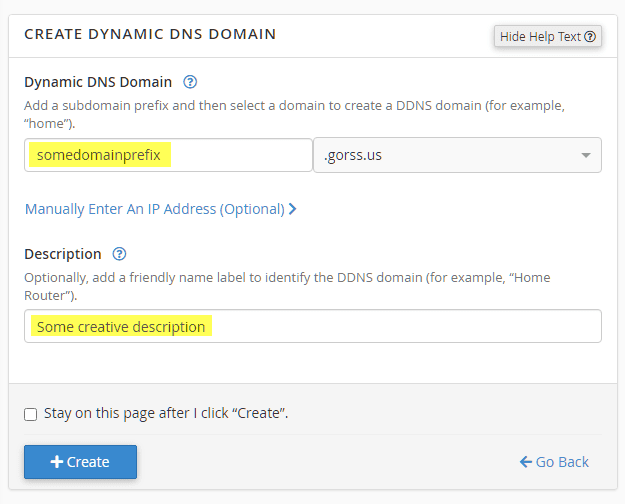
    Our first step is to log on to the hosting domain’s Cpanel interface and select “Dynamic DNS” under the domains section. Then select “Create”. Here you will create the subdomain prefix for the new address you wish to be updated. Leave the “manually enter an IP address blank” as we will use this for testing later.

    Create Dynamic DNS Domain

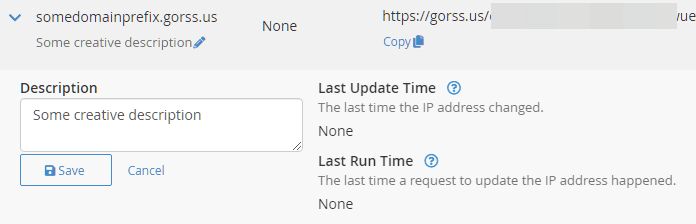
    After the subdomain is created, you will be taken to the list page showing the new entry. Leave this page open, as you will need to copy the URL that is shown to copy into CentOS later and will use it to verify the updates are taking place.

    Cpanel entry for DDNS subdomain and update URL

    Now log in to your CentOS server using an SSH interface. If you don’t have an SSH client, PuTTY has been around for ages and works quite well. The steps that follow next are for CentOS 7 or 8, using the systemd unit and nano editor. Every Linux admin has their preference for editors, mine happens to be nano.

    sudo su - root
    sudo nano /etc/systemd/system/updateddns.service

    You will need to enter the URL from the Cpanel DDNS page we left open before under the [Service] section. You can copy and paste the data below to save time.

    [Unit]
    Description=Update Cpanel DDNS
    Requires=network-online.target
    After=network-online.target
    
    [Service]
    ExecStart=/usr/bin/curl https://gorss.us/restoftheurlhere
    
    [Install]
    WantedBy=multi-user.target

    After the creation of the service and entering your Cpanel DDNS update URL, you will need to create the startup.

    sudo systemctl enable updateddns.service

    Now, this should start the service automatically upon server reboot. However, depending on your server’s security setup, your user account may not have permission to start services without entering a password. We can test this by trying to start the service manually.

    sudo systemctl start updateddns

    If you receive a prompt for a password, you will need to edit another file and give your sudo user account the NOPASSWD switch for this service. In the directions which follow, the “sudouser” is the name of the account you use for the sudo account; typically this means root is disabled at the command line and is a good security practice.

    sudo visudo

    Scroll to the end of the file and enter the following, using your sudo user account; again sudouser here is just a place setter and not the actual user.

    sudouser ALL=NOPASSWD: /bin/systemctl start updateddns, /bin/systemctl stop updateddns, /bin/systemctl restart updateddns, /bin/systemctl status updateddns

    Save the file, then switch to your sudouser account and test the commands again. You should no longer receive a prompt for a password, this will now let the updateddns service run on server reboot/startup.

    su - sudouser
    
    sudo systemctl start updateddns
    sudo systemctl stop updateddns
    sudo systemctl restart updateddns
    sudo systemctl stop updateddns

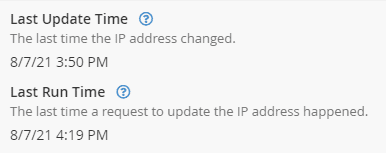
    You can now check the Cpanel DDNS interface page we left open earlier, refreshing the page, and it should indicate the last update to the record.

    Last update time entries

    You could also ping the new subdomain to validate the change also. If your primary domain name has been live for over 48-hours, the new subdomain should resolve immediately.

  • Basic Cream Cheese Frosting | Allrecipes

    Basic Cream Cheese Frosting | Allrecipes

    Gave this frosting a whirl today, ran the mixer on high for a good few minutes and it’s better than most store bakery versions. Was excellent on spice cake!

    Cream cheese frosting in mixer bowl

    You can find the receipe here: https://www.allrecipes.com/recipe/8379/basic-cream-cheese-frosting/

  • Almost full moon

    While trying to take a photo of the moon yesterday, it came out hazy due to the weather. Today though, it came out great. The details when I zoom in are just spectacular. Not bad for a first attempt with a DSLR. Noticed the image quality was a bit downgraded after upload, but the lower corner of the moon still looks sharp!

    moon

  • Getting your site ready for mobile-friendly indexing.

    Mobile searches are just as important as the desktop search. If you are selling a service or marketing a client who sells locally, your mobile search is even more important. People will often search on their phone to find something nearby, why not make sure you’re taking advantage of it?

    You can read more about Google’s mobile-first indexing via the link below, or you can check your site for mobile-friendliness now via this link.

    Official news on crawling and indexing sites for the Google index

    Source: Official Google Webmaster Central Blog: Getting your site ready for mobile-first indexing

  • Top 32 Nmap Command Examples For Sys/Network Admins – nixCraft

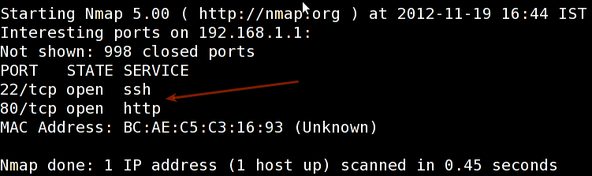
    Using NMAP can help identify vulnerable points on your network. One of the more effective tools out there, and as usual, the best are the command line. – AG


    Nmap command examples and tutorials to scan a host/network, so to find out the possible vulnerable points in the hosts and secure the system.

    Source: Top 32 Nmap Command Examples For Sys/Network Admins – nixCraft

  • Samy Kamkar: PoisonTap – exploiting locked computers over USB

    Interesting read on how just “locking” your PC is not enough when you are in a public environment (workplace, library, etc). With the push to HTTPS everything on the Internet, this can be foiled, but not all sites are running HTTPS exclusively. You can read the details here.

  • CCleaner’s August 2017 Release Infected

    Alert

    Back in August a version of CCleaner was released that was infected. More information is available around the web, but the direct release from Piriform is here. Recently Piriform was acquired by Avast.

    For the full technical details, you can read this post, which contains all the information for hashes, registry entries, etc.

Secret Link